Send your first event to Centrali Play
Send a sample event from the Centrali console and inspect exactly what reached its destination. You will create a subscriber, publish a named business event, and read the received JSON from Centrali Play.
You do not need to write a receiver or a function. The console handles subscriber setup and publishing; Play session creation and inspection use curl and jq. Play is a temporary test receiver, not a permanent destination for customer events.
Before you begin
- Sign in to a test workspace in the Centrali console.
- Use an account allowed to create subscribers and webhook subscriptions, publish events, and inspect delivery history. Ask your workspace administrator if an action is unavailable.
- Have
curlandjqinstalled. - Use synthetic data throughout this guide.
1. Create a temporary destination
Run this in your terminal:
PLAY_SESSION=$(curl --fail-with-body --silent --show-error \
  -X POST https://play.centrali.io/sessions)

PLAY_SESSION_ID=$(printf '%s' "$PLAY_SESSION" | jq -er '.id')
PLAY_CAPTURE_URL=$(printf '%s' "$PLAY_SESSION" | jq -er '.captureUrl')
PLAY_READ_TOKEN=$(printf '%s' "$PLAY_SESSION" | jq -er '.readToken')
printf 'Session expires at: %s\n' "$(printf '%s' "$PLAY_SESSION" | jq -er '.expiresAt')"
Keep this terminal open. Copy the value of PLAY_CAPTURE_URL into the console's endpoint field in the next step. The URL allows writes; PLAY_READ_TOKEN separately allows reads. Keep both private and out of screenshots or source control.
Sessions expire after one hour by default. Reading or sending events does not extend that deadline. If creation returns 429 or 503, respect Retry-After rather than repeatedly creating sessions.
2. Add a subscriber and its endpoint
In your test workspace:
- Open Send → Subscribers and choose New subscriber.
- Set Name to
Docs Play demo. - Set External ID to a unique value such as
docs-play-demo. It is your customer identifier, must be unique within the workspace, and cannot be edited after creation. - Under First endpoint, paste your Play capture URL into Endpoint URL.
- Choose Business events under Subscription mode.
- Type
docs.demo.readyin Events and press Enter so it becomes a selected tag. - Choose Create subscriber.
A subscriber groups delivery endpoints under a customer. A subscription determines which events go to one endpoint. This form creates the subscriber and its first endpoint subscription together. The endpoint should appear as Active, subscribed to docs.demo.ready.
If the subscriber is created but endpoint setup fails, reopen the subscriber's Endpoints tab and finish endpoint setup there; do not create the same customer again.
3. Publish a sample result
- Open Send and choose Open composer in Publish an event.
- Enter
docs.demo.readyas the Event name. - Paste this JSON object into Payload:
{
  "example": "centrali-play-walkthrough",
  "result": "Sample result available",
  "demoId": "docs-play-demo"
}
- Choose Publish event.
- Note the Correlation ID and the delivery result.
Publishing fans out to every active matching subscription in the workspace; use a dedicated demo event name. A match is not yet proof of receipt. Wait for Success with an HTTP 204 from Play, then verify the body below. A successful HTTP acknowledgement confirms receiver acceptance, not completion of a business action.
4. Inspect what Play received
Read captures using the same terminal and session variables:
curl --fail-with-body --silent --show-error \
  "https://play.centrali.io/sessions/$PLAY_SESSION_ID/events?after=0-0" \
  -H "Authorization: Bearer $PLAY_READ_TOKEN" \
  | jq '.events[] | {
      id,
      method,
      receivedAt,
      payload: (.body.data | @base64d | fromjson)
    }'
Play stores bodies as base64. This command decodes the JSON body for the sample event. Confirm:
methodisPOST.payload.eventisdocs.demo.ready.payload.workspaceSlugmatches your test workspace.payload.datacontains the example, result, and demo ID you published.payload.correlationIdmatches the console's publish result.
Centrali wraps the payload in an event envelope; your original JSON appears under data.
Play captures the request and acknowledges storage. It does not verify Centrali's webhook signature or run your business logic. For a production receiver, follow signature verification and receiver handling.
5. Inspect delivery history
Open Send → Deliveries and find your docs.demo.ready delivery. Compare its status, response code, and correlation ID with the publish result and Play capture.
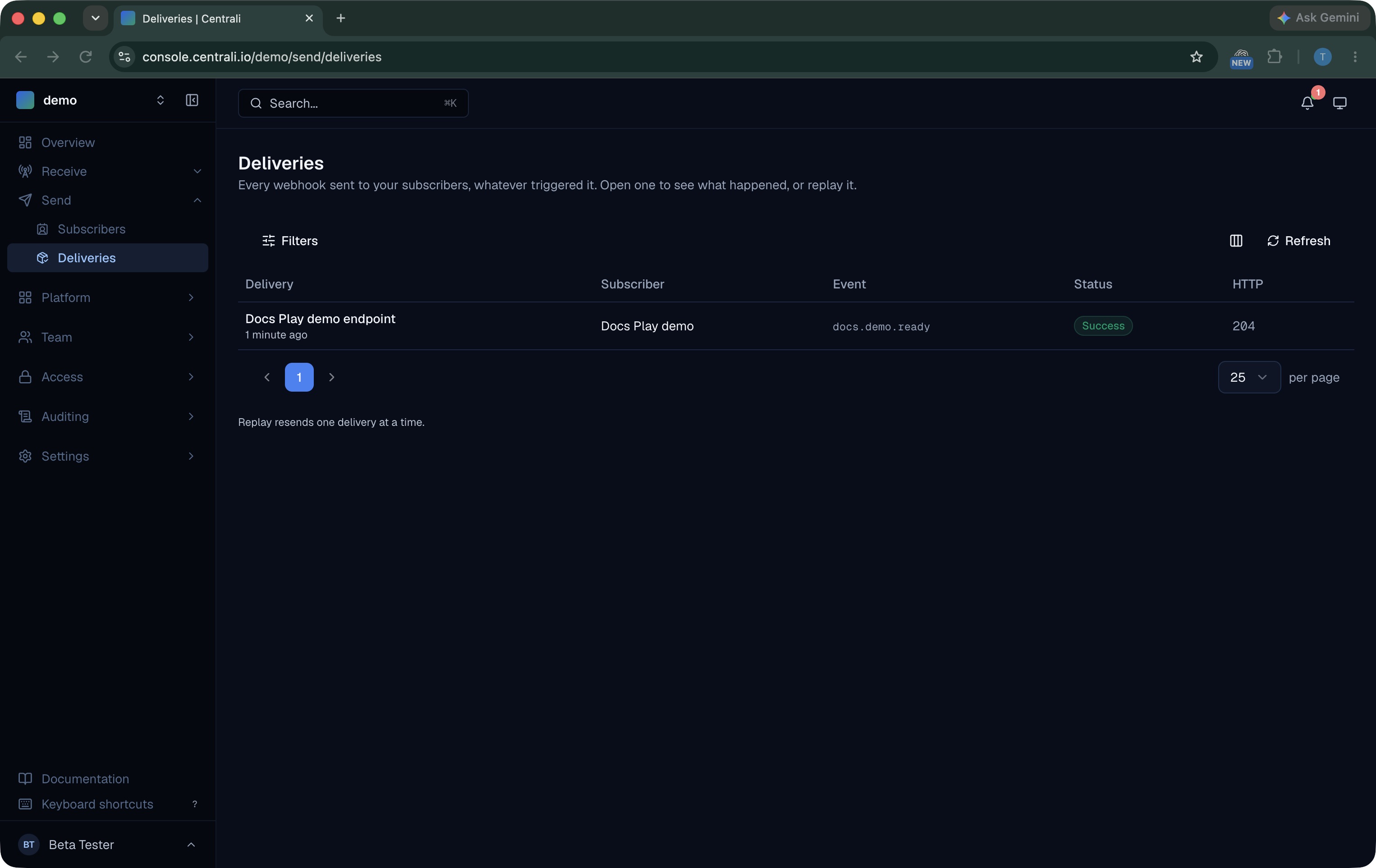
The useful result of this walkthrough is evidence at both ends: Centrali records a successful delivery, and Play contains the expected event body. It is a delivery test, not a ready-made business Solution.
6. Try replay with synthetic data
- In Send → Deliveries, open the successful sample delivery.
- Choose Replay delivery once.
- Return to the list and choose Refresh until the new delivery reaches its final status.
- Repeat the Play read command. For this fresh session, you should see a second capture with the same event body.
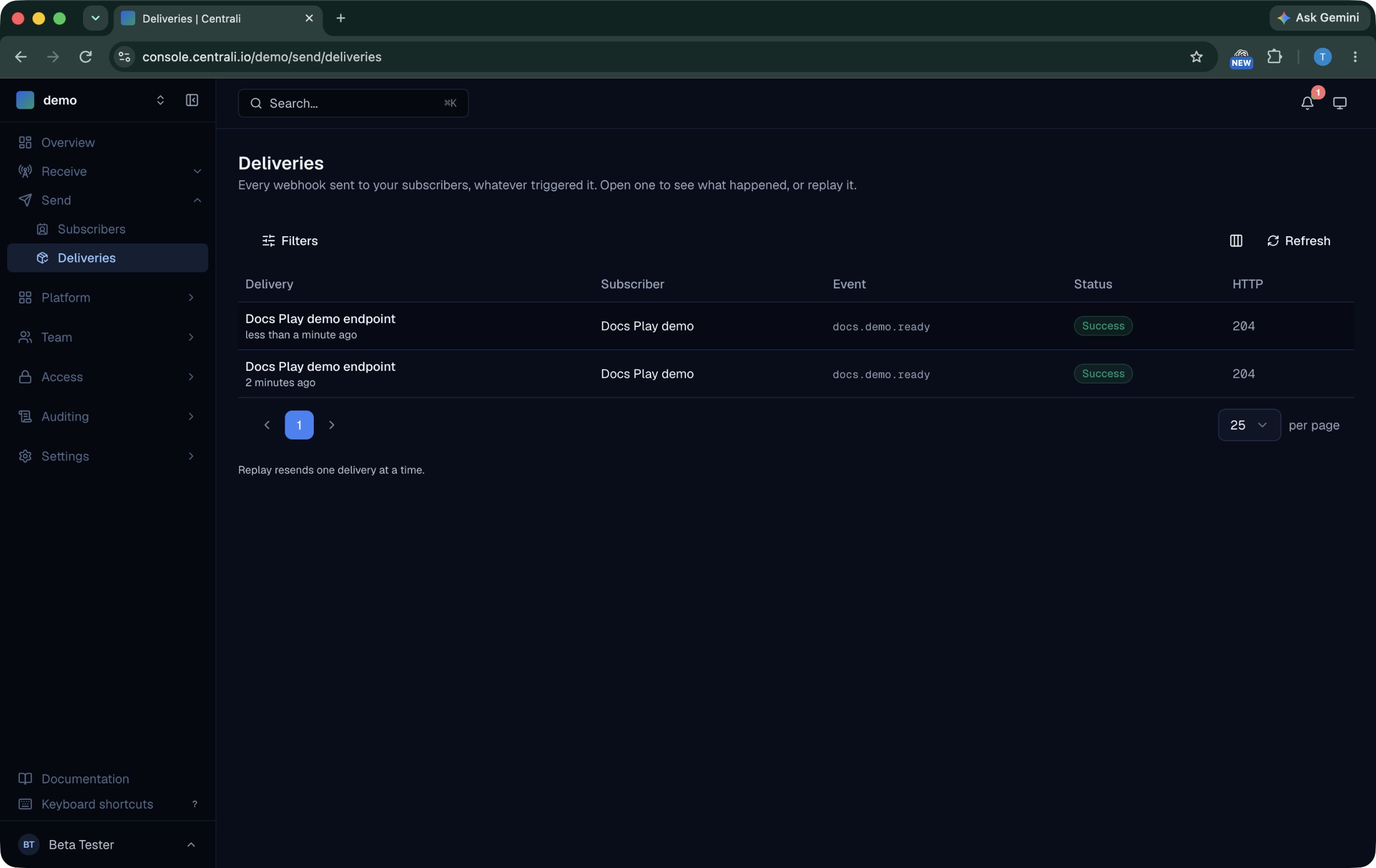
Replay creates another delivery; it does not undo or replace the first request. In the verified example, Play stored two captures with the same body and correlation ID. Production receivers need idempotent handling so retries and replay do not duplicate business actions. See Manual Replay for conditions and limits.
Troubleshooting
| What you see | What to check |
|---|---|
| No matching subscription | Exact event name, active endpoint, and Business events mode. A business-event subscription should not have a collection filter. |
| Events field appears empty | Press Enter after typing the event name so it is added as a tag. |
Delivery fails with 404 | The Play session may have expired. Create a new session and update the demo endpoint before publishing again. |
Play read returns 401 or 404 | Confirm the session ID and read token belong together, and check expiry. The capture URL does not authorize reads. |
| No event appears in a read page | Inspect the Centrali delivery result first. If Play returns hasMore: true, follow nextCursor as the next after value. |
For larger sessions, follow Play's pagination and polling guidance. Stop at expiry and avoid repeated empty polls.
Finish the test
After testing, open the subscriber's Endpoints tab, choose Manage, then Edit. Turn Active off and choose Save changes so the subscription no longer sends to the temporary URL. Keep delivery history for investigation. For another test, create a fresh Play session and update the endpoint before activating it again.
Continue with Outbound Webhooks for receiver signatures, event filtering, retries, and replay, or Centrali Play for capture limits and self-hosting.